Dashboards#
The dashboards are sophisticated, interactive visualizations built from time series data. They feature a browser-based interface that lets users assemble complex analytical dashboards without programming, while still supporting advanced configuration for power users.
Note
This is an essential feature of the Timeseries Refinery. It is only accessible within the pro version. If interested, please visit: https://timeseries.pythonian.fr/#ouroffer.
The dashboard admin page#
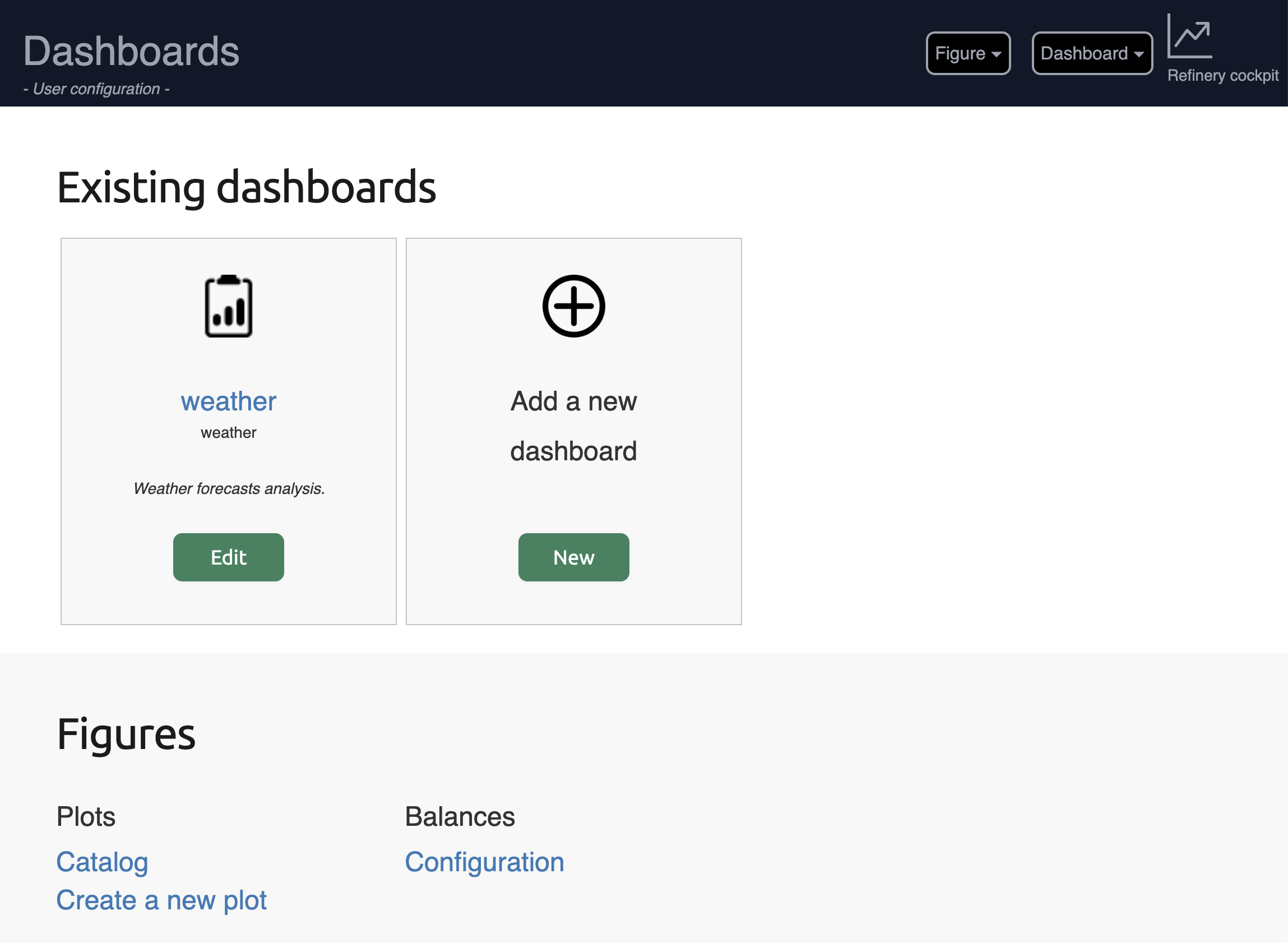
All dashboard authoring happens in a single place, the dashboard admin
page, a web application available under the /dashboards segment inside
the refinery. It is organised in three tabs:
Dashboards — a grid of the existing dashboards, plus an Add a new dashboard card. Each card links to the dashboard viewer and to its editor.
Figures — the figure catalog, with a new figure button. Figures can be filtered by name and type, and opened in the figure editor.
Balances — the balance catalog, with a new balance link. Balances are a reusable, first-class building block (see Balances below).
Managing dashboards#
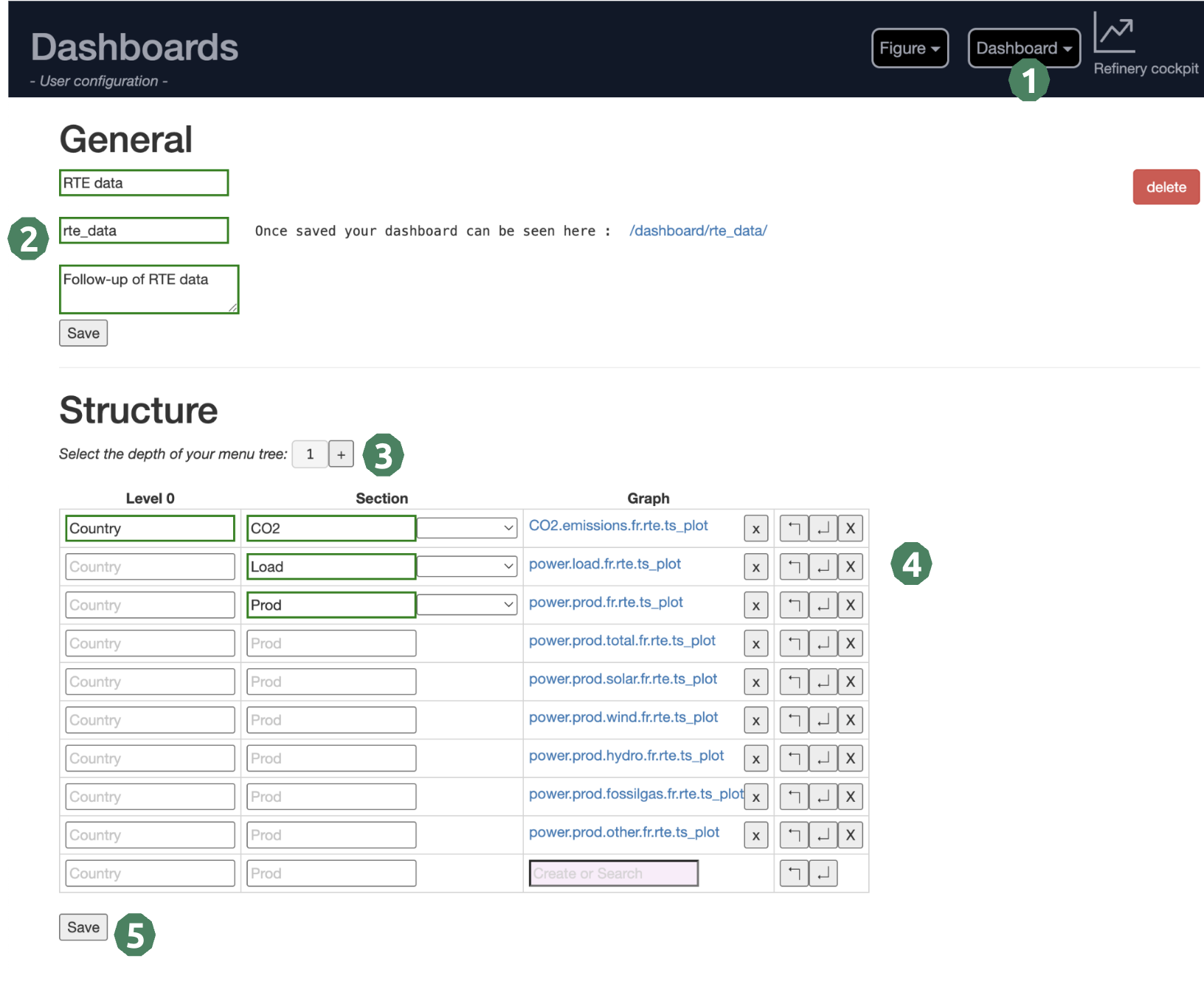
A dashboard is a named tree of navigation nodes, sections and figures. The dashboard editor (reached from a card on the Dashboards tab, or from the Add a new dashboard card) lets you build that tree interactively:
General information — set the dashboard title and a short description. The name is checked live for availability; a conflict is reported before you can save.
Build the tree — add navigation nodes, sections under them, and figures inside sections. Nodes, sections and figures can be renamed, reordered (move up / move down), collapsed and deleted in place. There is no fixed menu depth to declare up front — you grow the tree as needed.
Section forms — a section can be associated with a form so that, in the viewer, the reader may request a custom time period (or other parameters) for the figures of that section.
Figures — figures are picked from the existing catalog and placed into sections. A single figure can appear in several dashboards.
Save or clone — save the dashboard, or clone it under a new name to start a variant. A View button opens the resulting dashboard; you can share its link with your team.
Warning
Mandatory fields are flagged in the editor. You cannot save while a mandatory field is empty or while the name is in conflict.
Viewing a dashboard#
The dashboard viewer presents the saved tree to the reader.
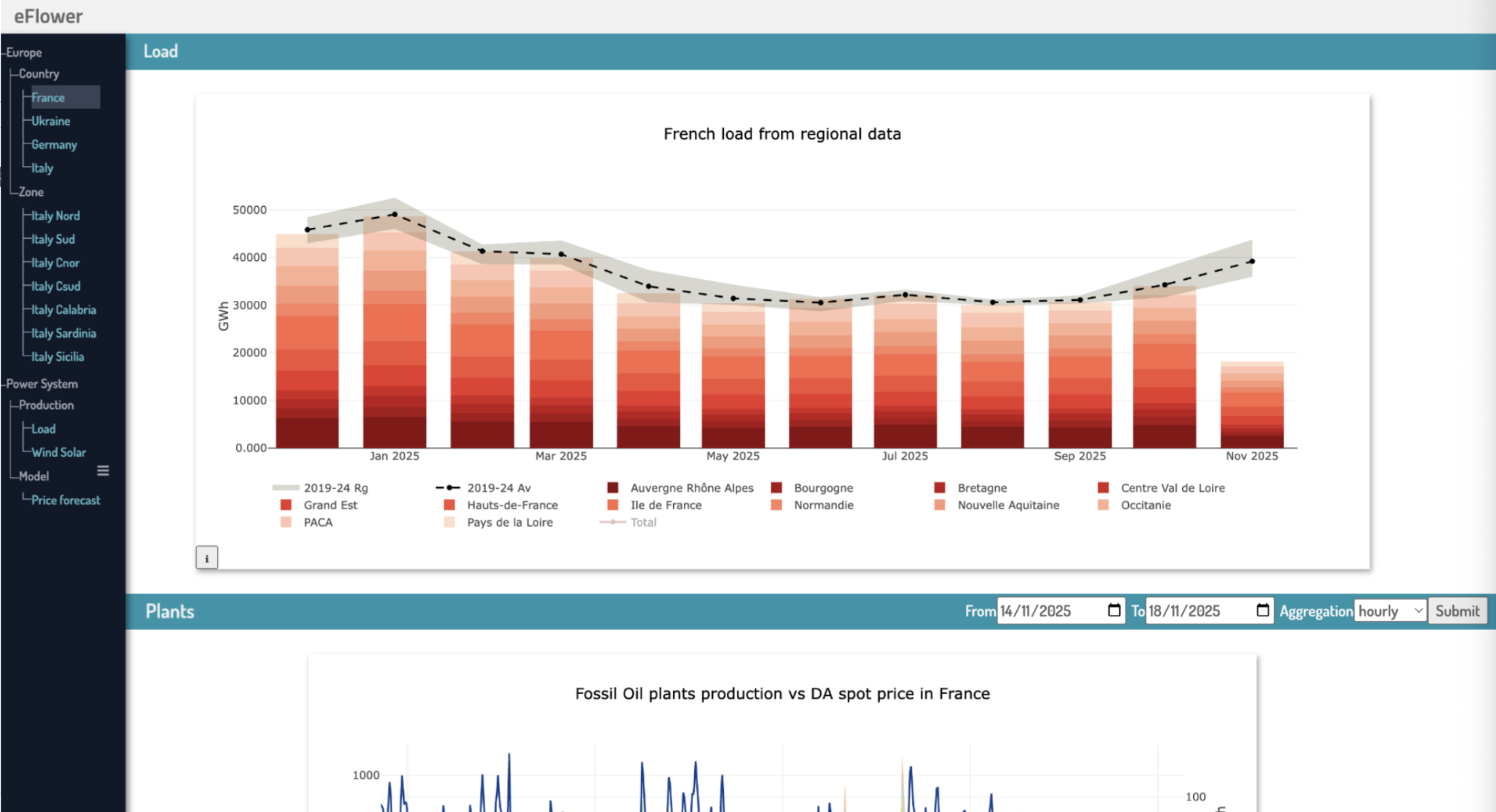
- Menu
A collapsible tree menu on the left side reflects the dashboard structure. It can be folded away with the
☰toggle to give the figures more room. Intermediate nodes group the tree; leaf entries are clickable and select the page to display.- Sections
The selected page is made of named sections. Each section carries a title banner and the figures assigned to it.
- Forms
A section may expose a date (or dropdown) form. Submitting it re-runs the section’s figures for the requested period or selection.
- Per-figure info panel
Every figure has an info panel offering a standalone view link, an edit link back to the admin page (for users with write access), and deep links to the underlying series or groups.
Figures are rendered according to their kind: ordinary figures are drawn as interactive plots, while a balance figure is shown through an embedded balance viewer (see Balances).
Managing figures#
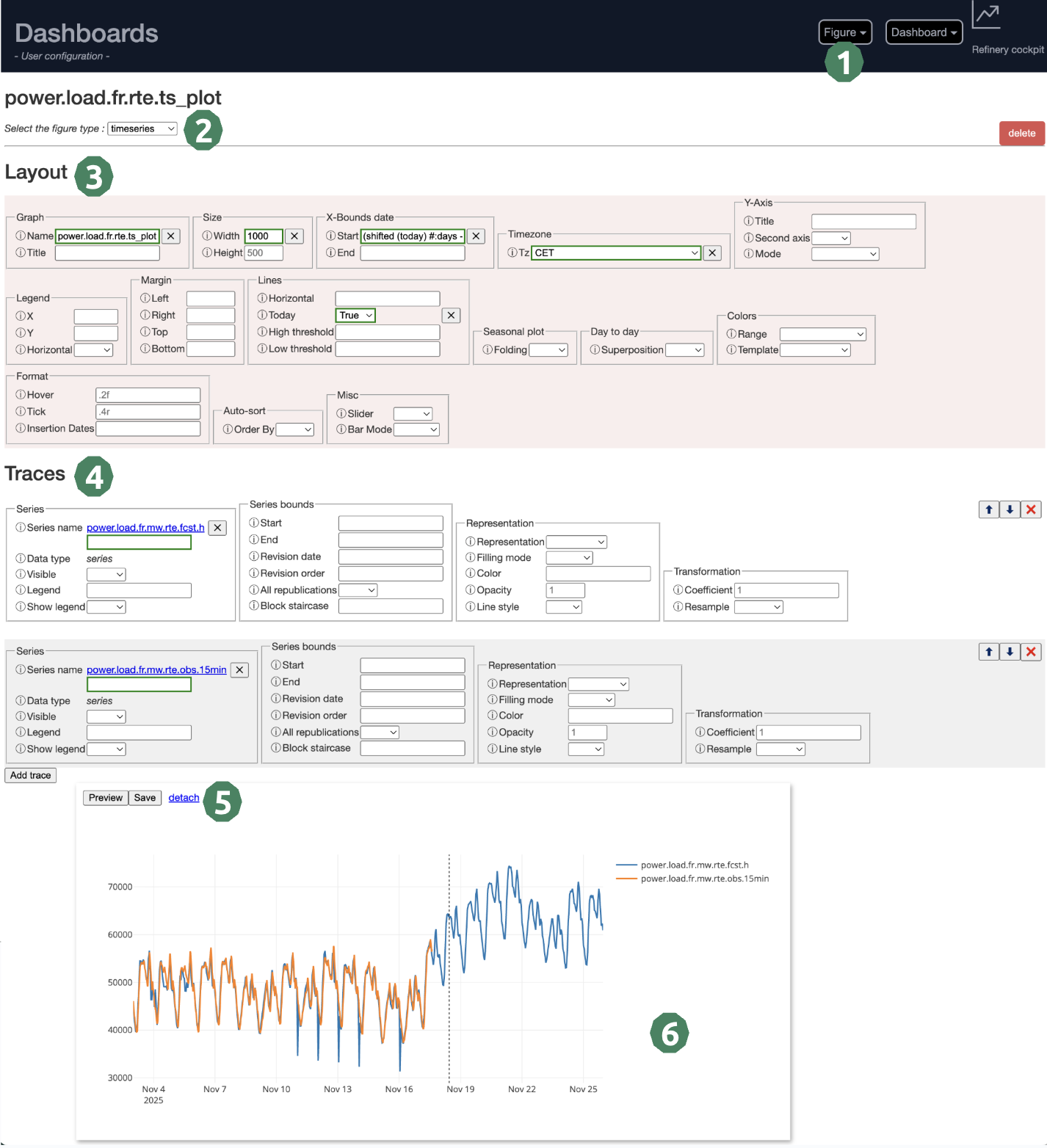
A figure is a named, reusable plot definition. The figure editor (reached from the Figures tab, or from the new figure button) is a single panelled interface with a live preview:
Name and type — give the figure a name (checked for availability) and pick its type from the list of Figure Types.
Configuration panels — the parameters are grouped in collapsible panels (horizon, data range, traces, and type-specific panels such as transform, layout and style). Contextual help is available on the parameters.
Traces — a figure can carry several traces; each trace targets a series or a group and has its own styling. Traces can be added, re-targeted (rebind) and removed.
Live preview — the preview pane renders the figure as you configure it, without saving, which is handy for tuning parameters.
Save, clone or delete — save the figure, clone it under a new name, or delete it. Deletion is aware of the dashboards that reference the figure.
Warning
Mandatory fields are flagged in the editor; you cannot save a figure while a mandatory field is empty.
A balance figure is a special case: instead of traces, it is edited as a reference to a balance definition from the registry — you choose the target balance, its period, and a mode (see Balances). Balance figures are not previewed server-side.
Figure Types#
Timeseries#
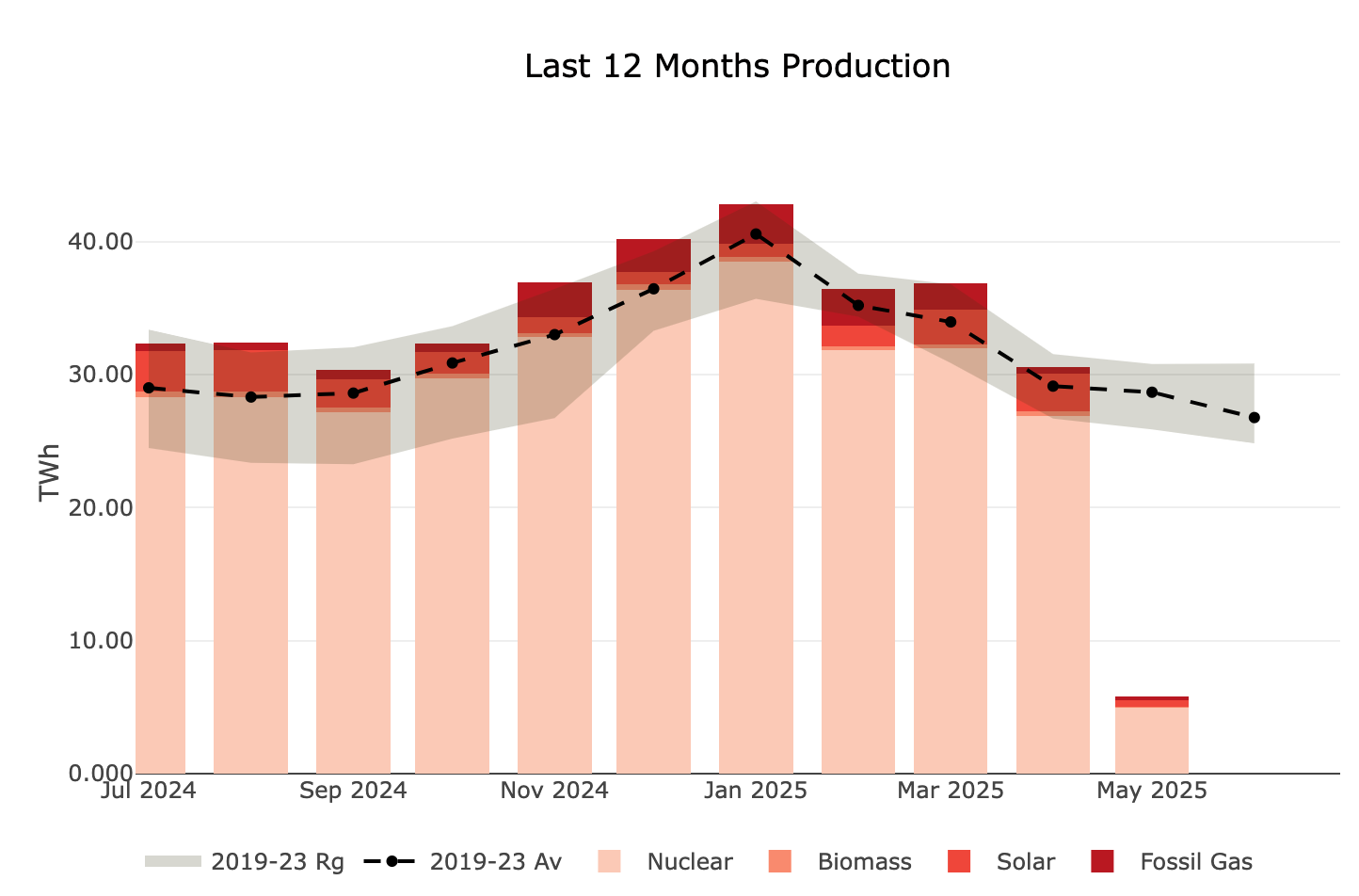
This is the most common figure type, ideal for displaying time-oriented data with a horizontal date axis. It is particularly useful for monitoring trends, detecting patterns, and comparing multiple series over time.
- Common use cases:
Energy production and consumption monitoring
Price evolution tracking
Temperature and weather data visualization
Financial metrics and KPIs evolution
- Available options:
Line plots with multiple styling options
Area charts with configurable fill modes
Stacked and grouped bar configurations
Seasonal overlays for year-over-year analysis
Multi-axis support for different data scales
Table#
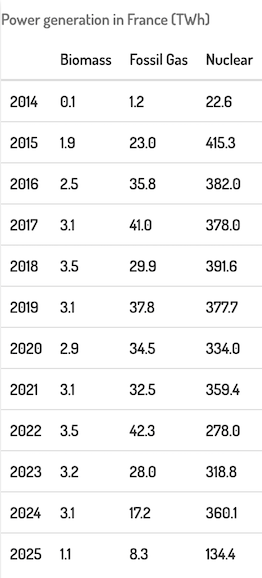
The table figure displays time series data in a tabular format, making it easy to read precise values and compare data across different time periods. This format is particularly useful for reports, data exports, and when exact numerical values are more important than visual trends.
- Common use cases:
Detailed numerical reports with exact values
Comparison of multiple series side by side
Monthly or yearly aggregated summaries
Scatter#
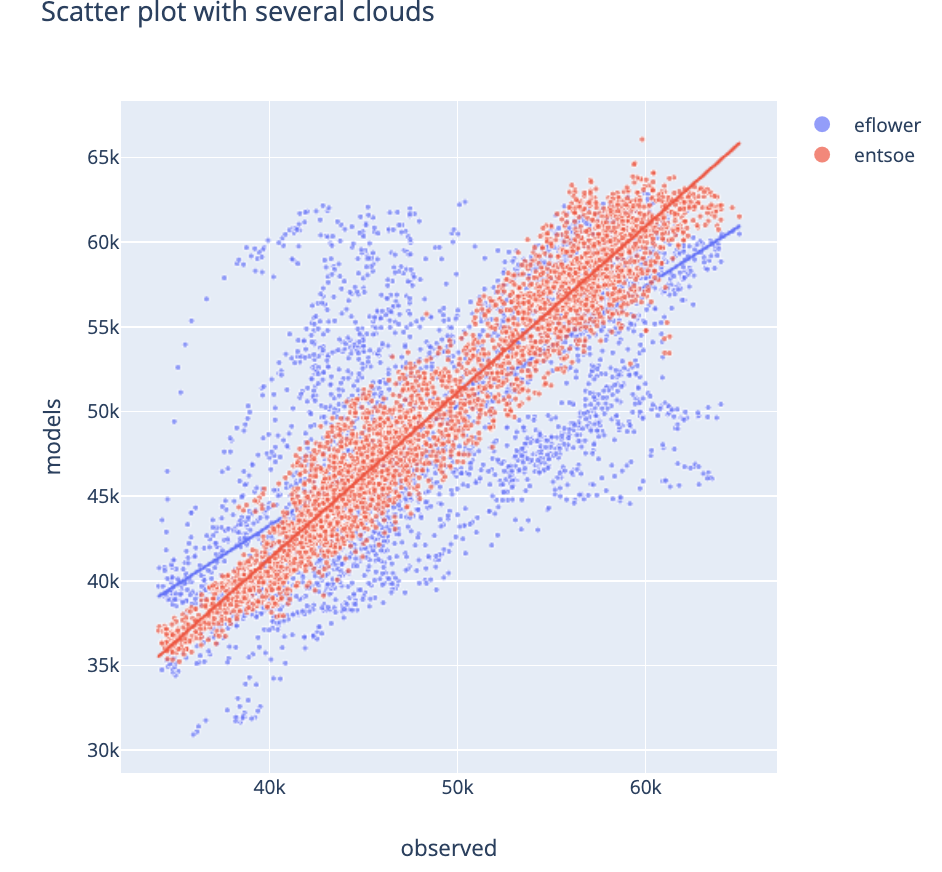
The scatter plot is essential for analyzing correlations and relationships between two variables. When hovering over the correlation line, statistical information appears including the correlation coefficient.
- Common use cases:
Correlation analysis between two time series
Identifying linear or non-linear relationships
Detecting outliers and anomalies
Validating model predictions against observations
Daily Profile#
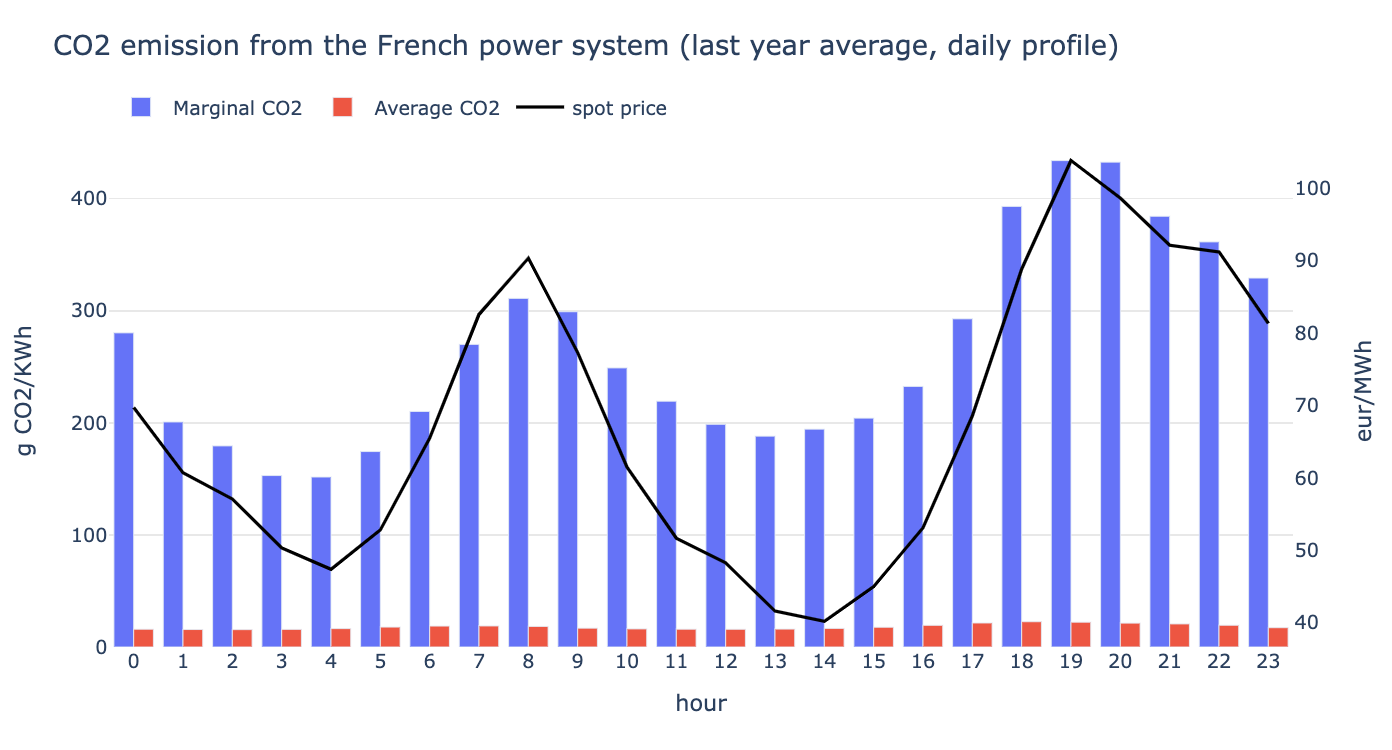
The daily profile plot is specialized for intraday data, presenting the daily pattern hour by hour across multiple days. This visualization highlights recurring patterns and helps identify typical daily cycles.
- Common use cases:
Electricity load profiles (daily consumption patterns)
Intraday trading activity analysis
Temperature variations throughout the day
Traffic or usage patterns during business hours
Candlestick#
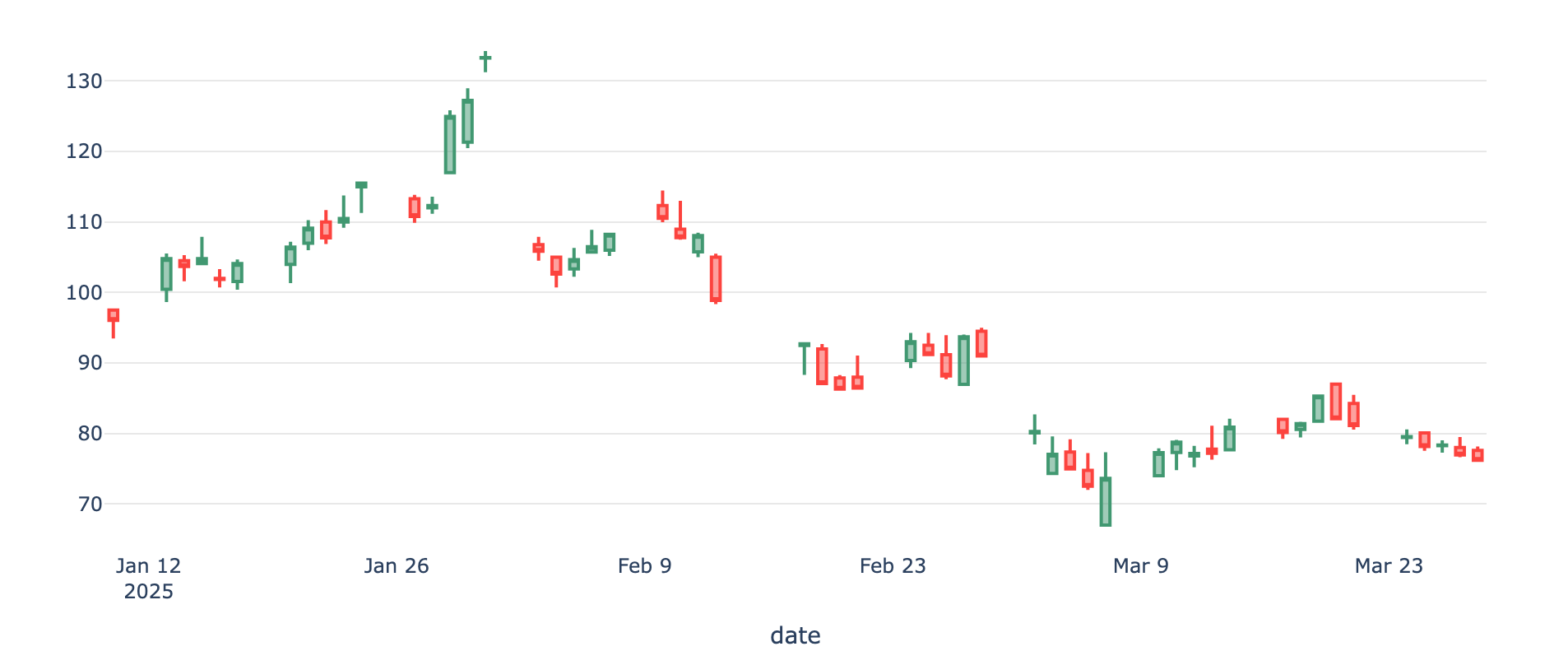
The candlestick figure is a standard visualization for market data, displaying Open, Close, High, and Low values for each time period. Each candlestick provides a comprehensive view of price movement within a single time interval.
- Common use cases:
Stock price visualization
Commodity market analysis
Energy market price movements
Balance#
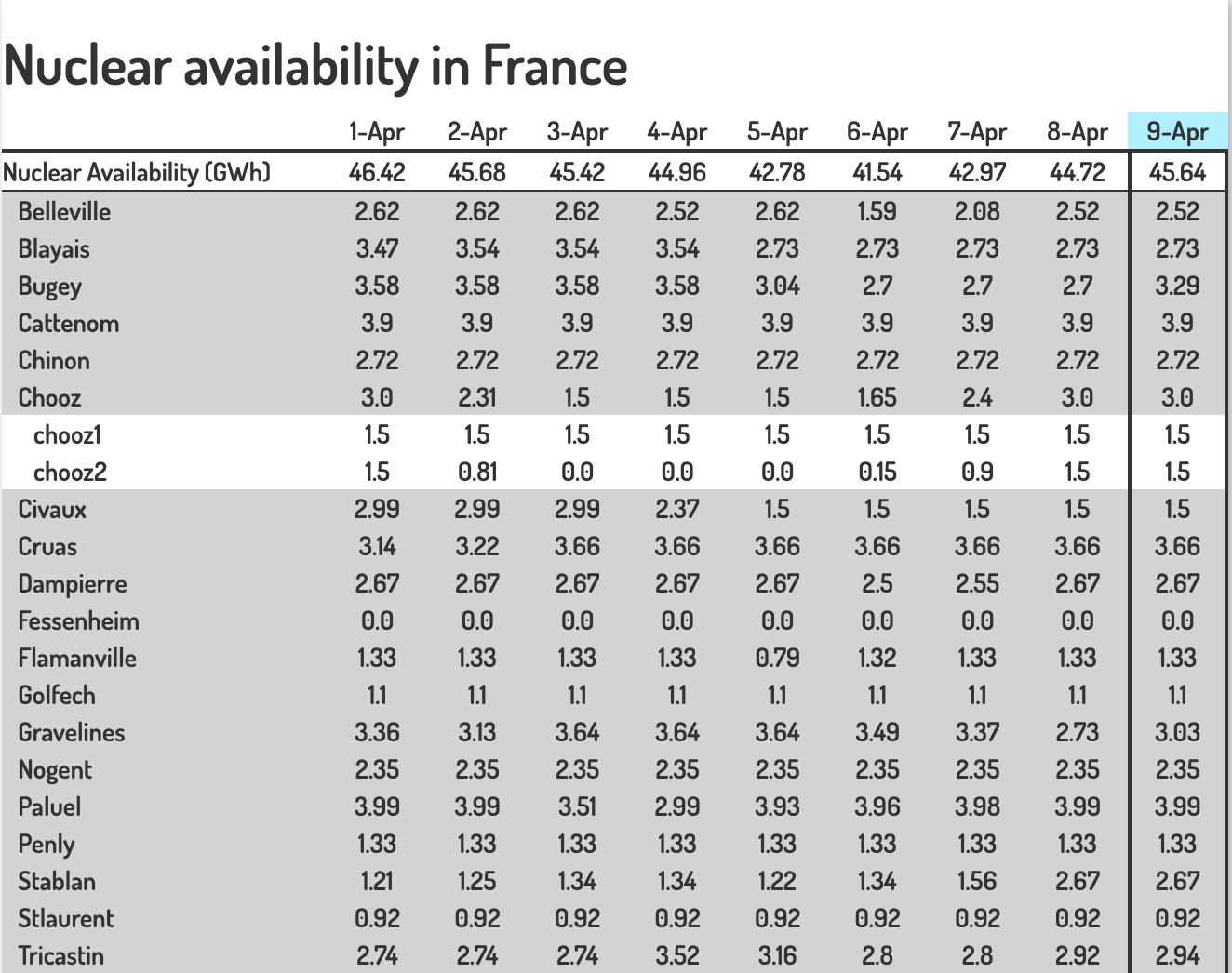
The balance figure presents hierarchical data in a table format where values are organized by aggregation levels. Each lower level can be summed up to obtain the corresponding upper level, ensuring data consistency and making it easy to drill down from aggregated to detailed values. It comes in two modes. See Balances for defining and managing the underlying balance.
Values mode
The default mode shows the balance as described above.
- Common use cases:
Financial statements (revenue breakdown by category)
Energy balance sheets (production by source)
Hierarchical budget tracking and reconciliation
Delta mode
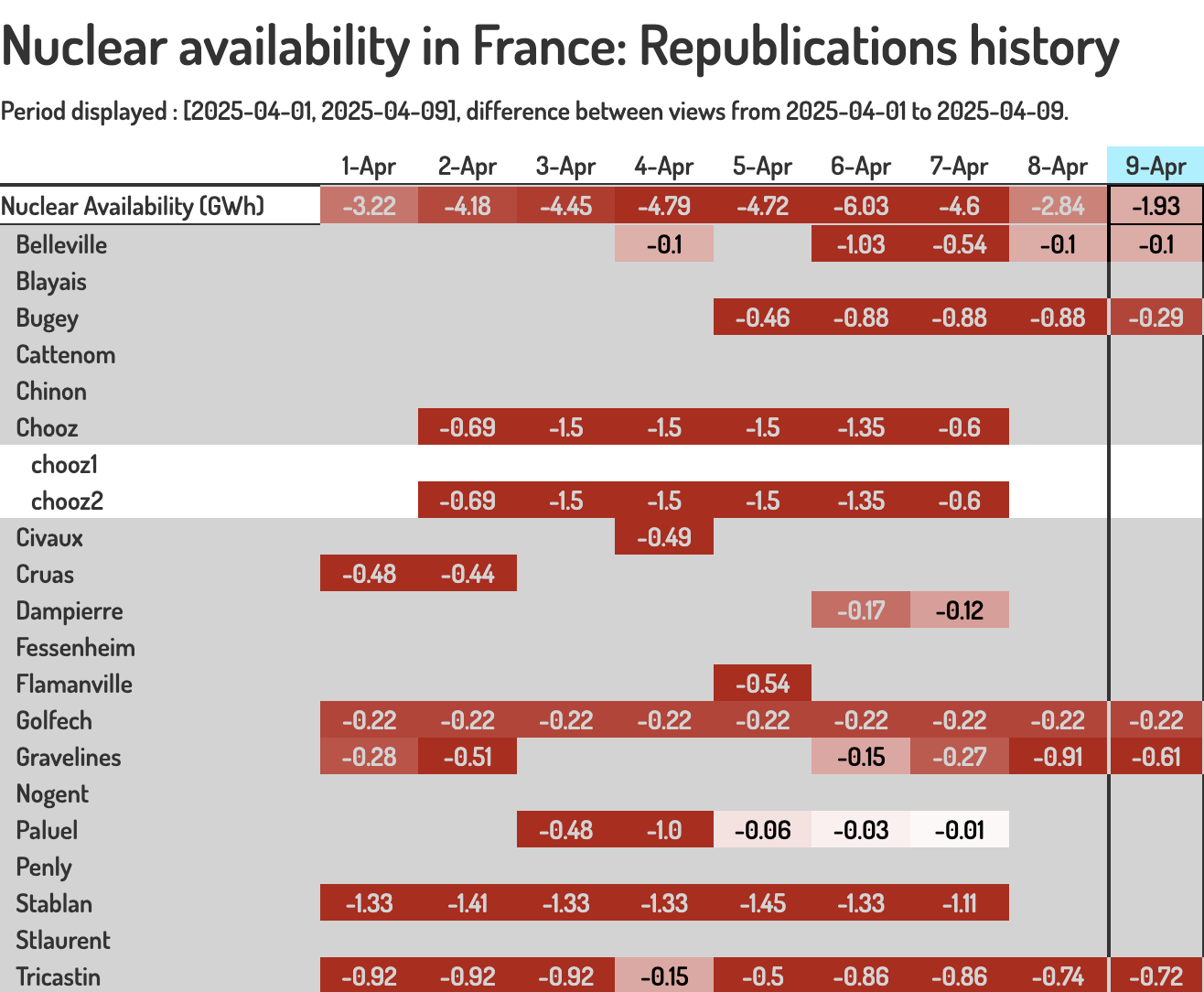
The delta mode highlights the differences between two versions of the table (a then and a now revision), making it easy to see what changed between two periods or data revisions.
- Common use cases:
Month-over-month or year-over-year comparison
Budget vs actual variance analysis
Revision tracking and change detection
Group#
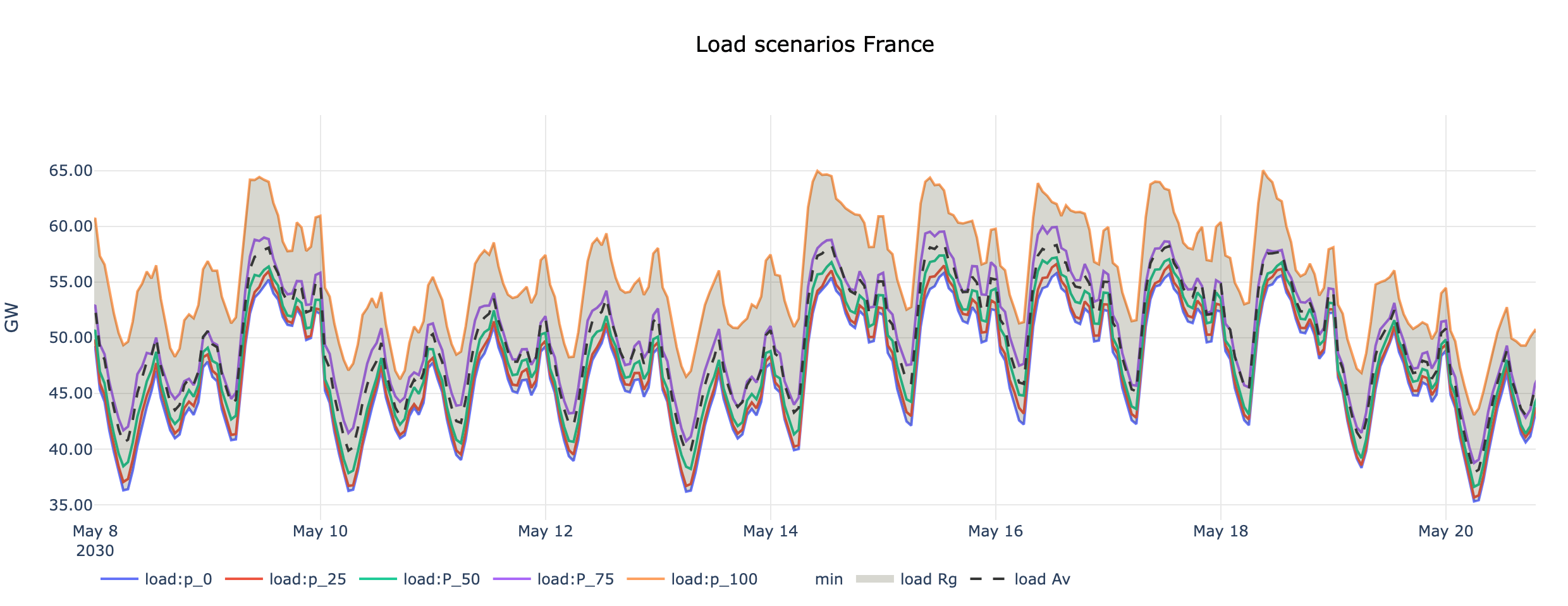
The group figure is designed to visualize “group” data, which represents multiple related scenarios or ensemble forecasts. It displays all members of a group simultaneously, allowing comparison between different scenarios or model runs.
- Common use cases:
Weather ensemble forecasts (multiple model runs)
Monte Carlo simulation results
Scenario planning (best case, worst case, expected)
Uncertainty quantification in predictions
Waterfall#
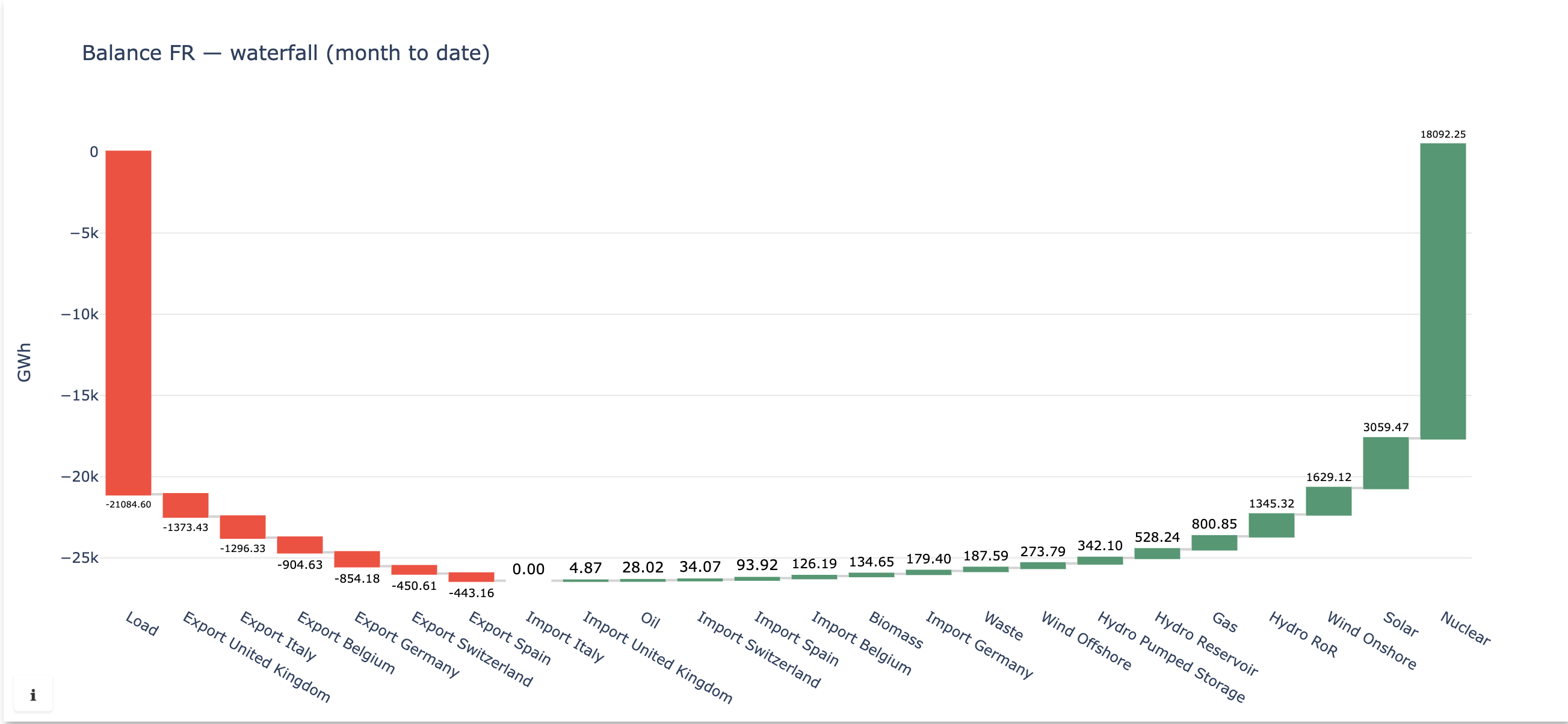
The waterfall figure shows how a starting value is built up (or drawn down) by a sequence of positive and negative contributions to a final total. Each trace is a contributing term.
- Common use cases:
P&L bridges from one period to the next
Contribution and breakdown analysis
Decomposing a total into its sources
History heatmap#
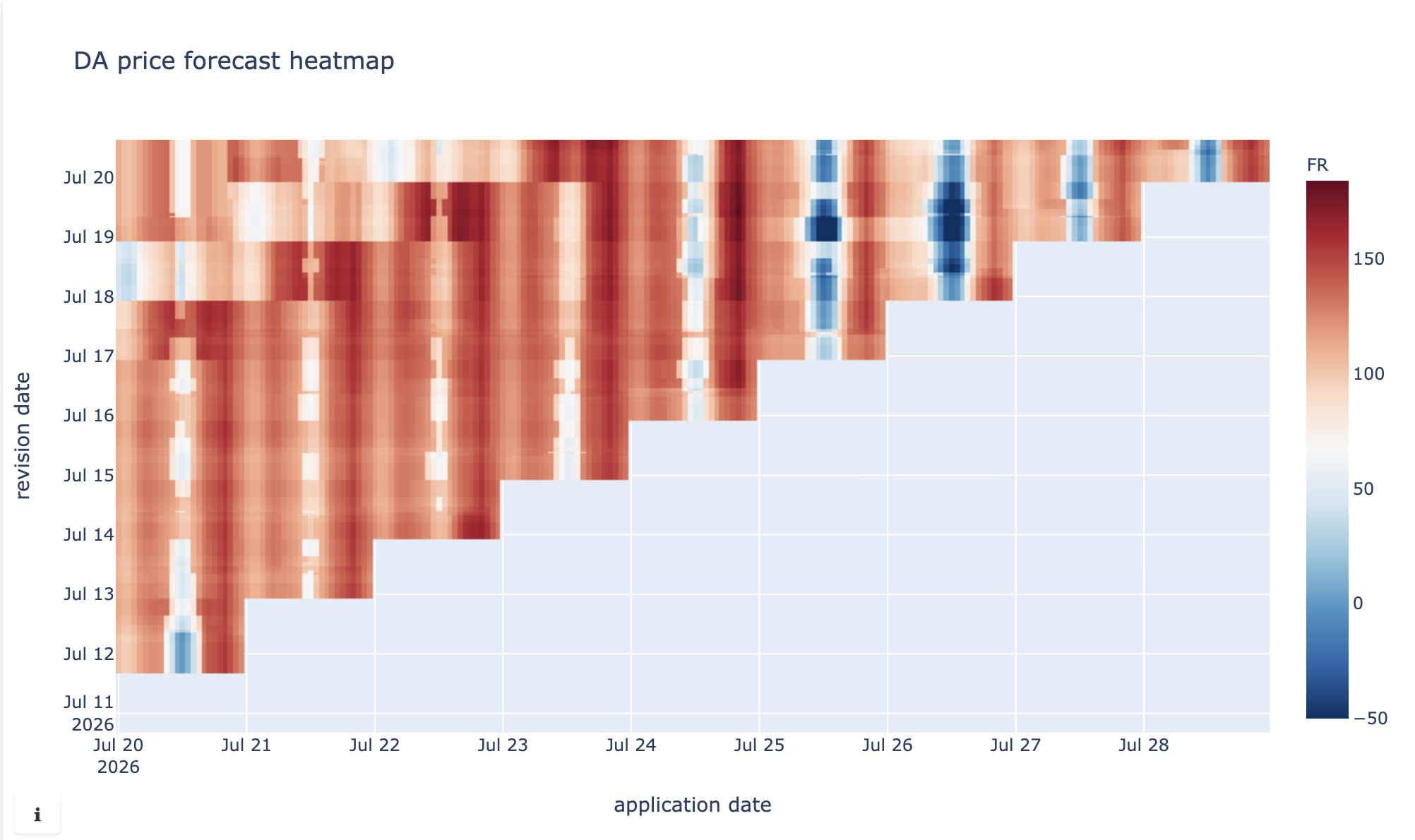
The history heatmap displays a single series’ history as a grid: value dates on one axis, revision (insertion) dates on the other, and colour encoding the value. It reveals how the series changed from one revision to the next.
- Common use cases:
Watching a forecast evolve across successive revisions
Spotting when and where values were revised
Data-quality and stability review
History curve#
The history curve overlays chosen revisions of a single series as ordinary curves: pick the insertion dates (each with an optional label) and get one curve per revision. It is the curve counterpart of the history heatmap, for when a handful of well-chosen revisions tell the story better than the full grid.
- Common use cases:
Comparing yesterday’s and today’s forecast on one plot
Showing how successive forecasts converged towards the outcome
Model statistics#
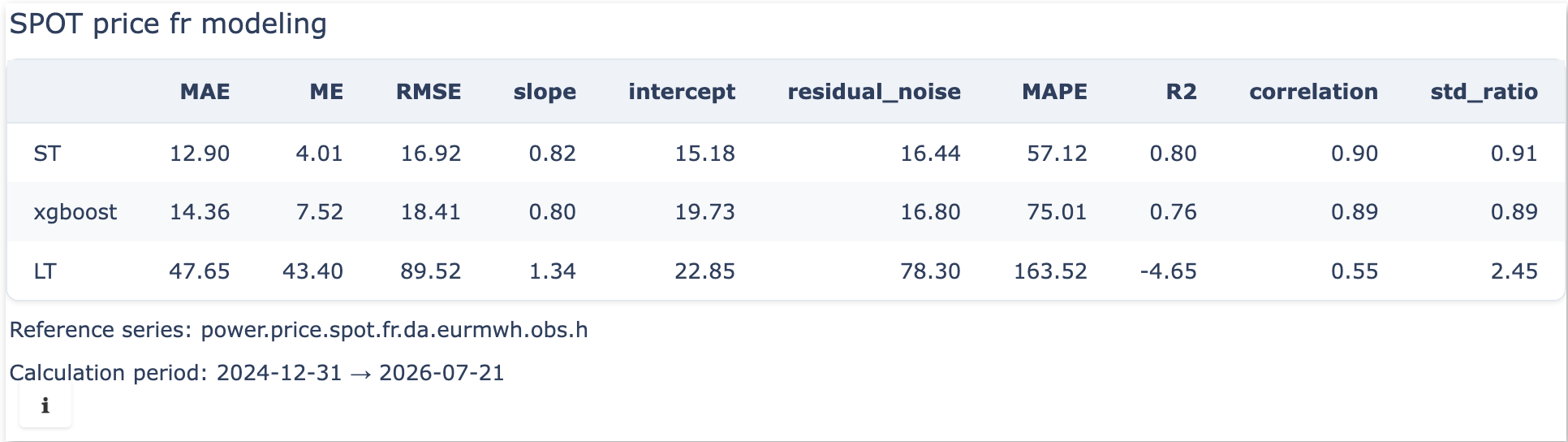
The model statistics figure evaluates one or more model series against a reference series and reports error metrics (MAE, RMSE, …). Each model trace is compared to the reference over the window; it needs a reference series and a list of metrics.
- Common use cases:
Forecast accuracy assessment
Comparing competing models against observations
Monitoring model error over time
Note
Keep in mind that new figure types can be easily added.
Balances#
A balance is a first-class, reusable object stored in a registry, separate from figures. It captures a hierarchical, aggregable table — values that sum up level by level. Figures then reference a balance rather than redefining it.
- Definition versus reference
A balance definition lives in the balance registry under a name, as a typed expression in the balance language. A figure only stores a reference to that name (with a period and, optionally, a mode). Renaming a balance propagates to the figures that reference it.
The balance language
A definition is a (balance "label" (config ...) <row> ...) expression.
Its pieces:
config and periods — config sets the timezone and one or more named
periods. Each period gives a label, a frequency, a from/to range, and,
for the Delta mode, optional #:delta_then / #:delta_now revisions.
The frequency has three spellings: a bare offset "h", (freq "D"), or
a multiple (n_freq 15 "min"). The range bounds are date expressions built
from (now), (today), the period projections monthstart,
yearstart and yearend, the deltahours / deltadays /
deltamonths / deltayears shifts, and the multi-keyword shifted.
(config "CET"
    (period "15min" (n_freq 15 "min")
            (shifted (today) #:days 1) (shifted (today) #:days 2))
    (period "Daily" (freq "D")
            (shifted (today) #:days 1) (shifted (today) #:days 14)
            #:delta_then (shifted (today) #:days -1)))
rows: sum, series, basket — the rows form a tree. Branch nodes are
sum (they total their children); leaf nodes are series (a series
name and an aggregation method) or basket (a saved query, a method, and
a metadata key used to label its members). Each level equals the sum of its
descendants, which is what keeps the table internally consistent.
(sum (draw_option "Production" #:unit "MW")
    (series "prod.plant_a.mw.fcst.15min" "mean" (draw_option "Plant A"))
    (basket "plant_b.machines.fcst" "mean" "label" (draw_option "Plant B")))
sum accepts two options: #:override supplies a directly measured
series standing for the subtotal, when it is more reliable than summing
the parts, and #:fill_0 treats missing points as zero (basket
also accepts it):
(sum (draw_option "Production" #:unit "MW")
    (series "prod.plant_a.mw" "sum" (draw_option "Plant A"))
    (series "prod.plant_b.mw" "sum" (draw_option "Plant B"))
    #:override (series "prod.total.measured.mw" "sum" (draw_option "Production"))
    #:fill_0 #t)
draw_option — every node carries a draw_option setting its display
label and formatting: #:unit, #:decimal, #:coefficient to
scale a term (e.g. -1 to subtract it), and #:exclude to show the
row for information while leaving it out of the aggregate.
(draw_option "Net position" #:unit "MW" #:decimal 0 #:coefficient -1)

(draw_option "Memo: imports" #:exclude #t)
The update_balance client method accepts exactly this text; see
Programmatic access for a complete definition and how to submit it.
- Balance editor
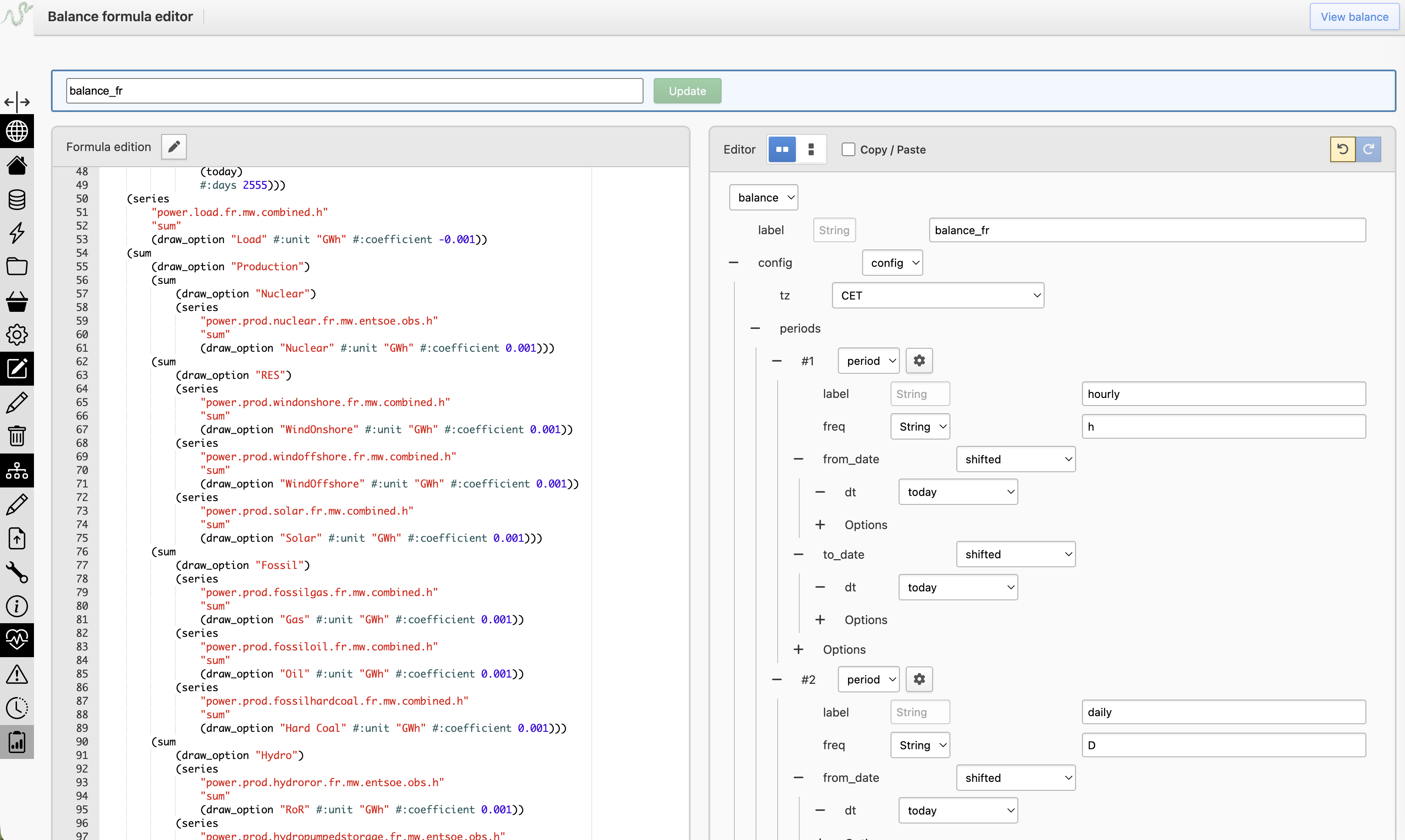
Reached from the admin page’s Balances tab, the balance editor is a dedicated editor for the balance language. You give the definition a name and create or update it; the definition is validated (types, and existence of the referenced series and baskets) before being saved. A View balance link opens the viewer once the balance is saved.
- Balance viewer
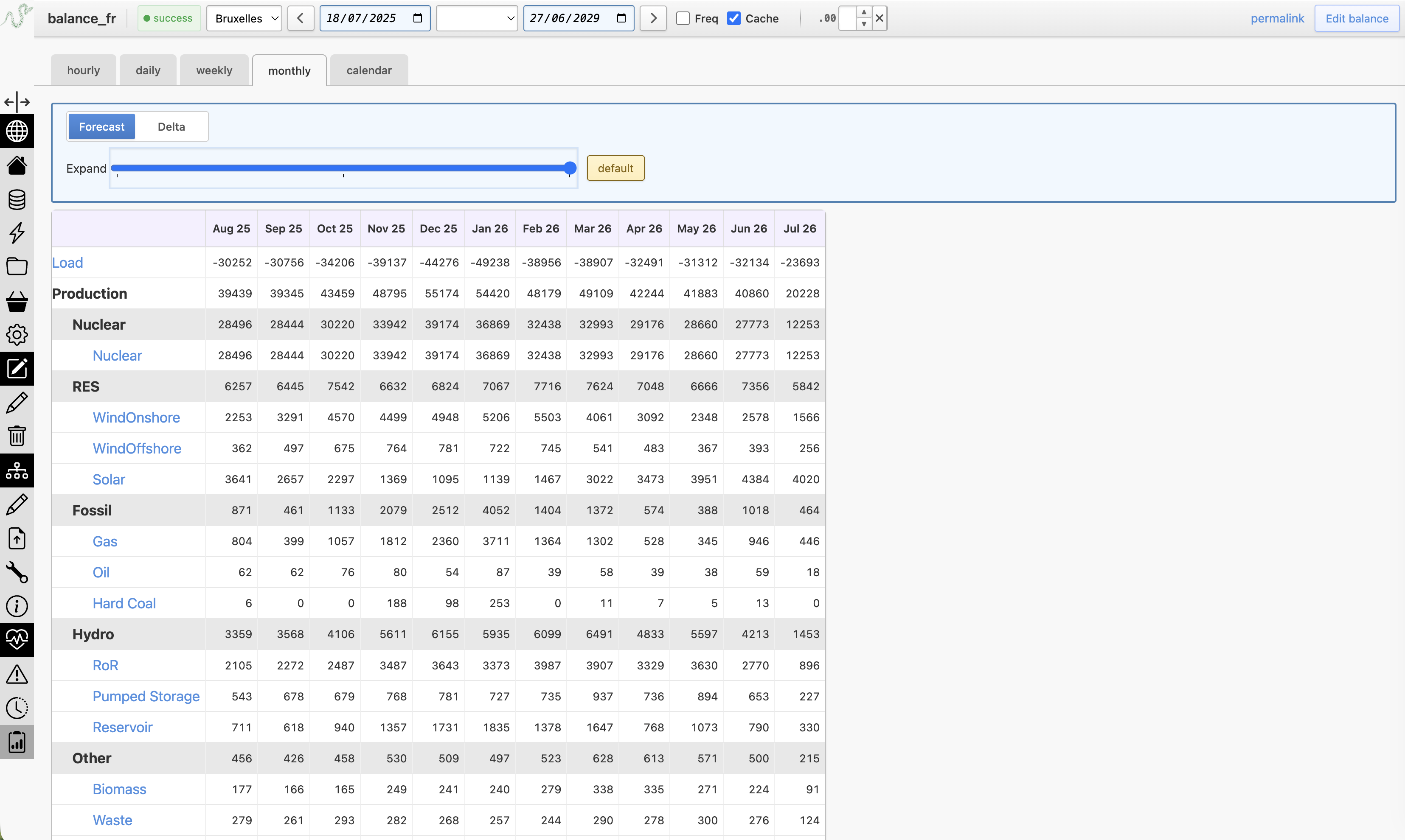
The balance viewer renders a balance as a table. It offers a Values mode and a Delta mode (comparing a then and a now revision), plus an expanded control governing how far the hierarchy is unfolded by default.
Programmatic access#
Beyond the admin page, figures, dashboards and balances can be managed
programmatically through the tsa.dashboard client — a DashboardAPI
instance carried by every refinery API handle. This is convenient for
automated or bulk generation.
Figures
A figure is assembled from model objects: a variant (the plot type, which
holds the traces) plus optional query (value window and timezone),
transform, layout and style blocks. Each Trace targets a
series (or a group) and carries its own styling:
from tshistory.api import timeseries
from tshistory_formula.helper import seriesname
from tshistory_dashboard.model import (
    Figure, Timeseries, Trace, Query, FigureLayout,
)

tsa = timeseries()

tsa.dashboard.update_figure(
    Figure(
        name='plant.generation',
        variant=Timeseries(
            traces=[
                Trace(
                    name=seriesname('prod.plant.mw.actual.15min'),
                    legend_name='actual',
                    color='#1f77b4',
                ),
                Trace(
                    name=seriesname('prod.plant.mw.forecast.15min'),
                    legend_name='forecast',
                    color='#1f77b4',
                    line_style='dot',
                    from_date='(deltadays (today) -1)',
                ),
            ],
        ),
        query=Query(tz='Europe/Paris'),
        layout=FigureLayout(
            title='Plant generation (MW)',
            yaxis_title='MW',
            today_line=True,
        ),
    )
)
update_figure both creates and updates (upsert by name). The figure is
validated before being stored; an invalid one (missing series, no trace,
…) raises FigureError.
Other variants live in the same module — Table, Group, Scatter,
DailyProfile, Candlestick, Waterfall, HistoryHeatmap,
HistoryCurve and ModelStatistics — each assembled the same way (a
few take extra fields, e.g. ModelStatistics needs a reference series
and metrics). Balance figures are a special case, covered below.
Reading, listing, renaming and deleting:
fig = tsa.dashboard.get_figure('plant.generation')   # Figure or None
catalog = tsa.dashboard.figures_catalog()            # {variant: [names]}
tsa.dashboard.rename_figure('plant.generation', 'plant.gen')
tsa.dashboard.delete_figure('plant.gen')             # force=True to
                                                     # dereference first
Dashboards
A dashboard is a tree of navigation nodes and sections referencing figures. Nodes nest to any depth; a section holds ordered figure references and an optional form. Build it from the model objects:
from tshistory_dashboard.model import (
    Dashboard, TreeNode, Section, FigureRef,
)

tsa.dashboard.update_dashboard(
    Dashboard(
        name='generation',
        title='Generation',
        description='Fleet overview',
        tree=[
            TreeNode(label='Overview', children=[
                Section(label='Recent', form='bounds.d-w', figures=[
                    FigureRef('plant.generation'),
                ]),
            ]),
        ],
    )
)
or from its lisp source, which is handy for round-tripping an existing
definition (get_dashboard hands you back the same syntax):
dash = Dashboard.fromlisp(
    '(def-dashboard "generation" #:title "Generation"'
    ' (tree (node "Overview"'
    '  (section "Recent" #:form "bounds.d-w" (figure "plant.generation")))))'
)
tsa.dashboard.update_dashboard(dash)

# list of {name, title, description}
catalog = tsa.dashboard.dashboards_catalog()
tsa.dashboard.rename_dashboard('generation', 'fleet')
tsa.dashboard.delete_dashboard('fleet')
Balances
A balance definition is stored in the registry under a name and referenced
by balance figures (see Balances). It is created or updated from its
source expression — the same balance language as in the balance editor: a
config (timezone and one or more periods) followed by sum rows whose
leaves are series or basket nodes. The registry name is independent
of the internal (balance "...") label:
balance_source = '''
(balance "Portfolio"
  (config "CET"
    (period "15min" (n_freq 15 "min")
            (shifted (today) #:days 1) (shifted (today) #:days 2)))
  (sum (draw_option "Production" #:unit "MW")
    (series "prod.plant_a.mw.fcst.15min" "mean" (draw_option "Plant A"))
    (series "prod.plant_b.mw.fcst.15min" "mean" (draw_option "Plant B"))))
'''
tsa.dashboard.update_balance('portfolio_schedule', balance_source)

tsa.dashboard.balance_list()                         # list of names
tsa.dashboard.balance_formula('portfolio_schedule')  # the source, or None
tsa.dashboard.rename_balance('portfolio_schedule', 'portfolio')
tsa.dashboard.delete_balance('portfolio')
update_balance validates the definition (types, and existence of the
referenced series and baskets) and raises FigureError on failure.
Access and deployment#
By default the dashboards are served by the refinery itself, under the
/dashboards segment, reusing the refinery’s authentication. This is the
admin page and viewer described above, and needs no extra configuration.
The viewer can additionally be deployed as a separate, view-only application — useful when the audience of the dashboards is not the same as the refinery’s users. It exposes the dashboard viewer (and the read endpoints it needs) but none of the editors: authoring always happens back on the refinery’s dashboard admin page. Two flavours are available:
a public app: no authentication, every visitor is granted the read-only (
ro) role;a private app behind OAuth2, resolving each authenticated user’s role.
Roles gate access the same way everywhere: reading requires the ro,
rw or admin role, and editing (only ever on the integrated admin
page) requires rw or admin.
Separate deployments are wired together through the [dashboard] section
of tshistory.cfg:
[dashboard]
refinery = https://refinery.example.com/
dashboards = https://dashboard.example.com/
refinery— where the refinery lives. The standalone viewer uses it to aim its edit links (back at the dashboard admin page) and its series/group info links at the refinery.dashboards— where the dashboard service lives. The refinery’s own navigation uses it to link out to the dashboards (defaults to/dashboards).